It is funny. When you are working on things you just take some things for granted.
After all, you would expect that generating a self signed certificate for use with testing communication with Server 2008 would be some sort of built-in function right?
I mean if you Google around you can find all kinds of instructions, but they all have one big general assumption – IIS is installed. I don’t know about you, but I am a purist on my servers, a service does not get installed that is not being used. I refuse to install IIS just to generate a self signed certificate (oh, Exchange does this for OWA too).
Considering that this article is about securing WinRM (Windows Remote Management) traffic with SSL on Hyper-V – why do I want to install IIS on my Hyper-V host just to set this up?? This was my challenge.
I have checked out the Microsoft instructions for securing WinRM: http://technet.microsoft.com/en-us/library/cc782312.aspx
I have two comments – difficult to read and tailored to Server 2003. They are not ‘no brainer’ type of instructions and there are easier ways to do this. So, for my notes I decided to document this, and did it here to share.
Okay, how to generate a self signed certificate on Hyper-V (Server 2008).
The tools:
Not a simple right click anywhere. Days of searching turned up little. The easiest way to do this is: Install IIS – didn’t I say no to that already?
I discovered two ways to generate a self signed certificate that met my needs: MakeCert.exe and SelfSSL.exe
MakeCert.exe is for testing only and comes in Visual Studio – any developer would jump on this in a heartbeat.
SelfSSL.exe is a part of the IIS 6 Resource Kit. – Resource kit = administrator friendly.
I settled on SelfSSL because I found better documentation and it did more work for me.
Click on the link above, download the resource kit, and run the installer to extract just SelfSSL.exe, copy it somewhere convenient.
I have SelfSSL, now what?
(You may notice that I have more instruction than is necessary – that is for the curious among us)
Open a command prompt (don’t leave the prompt, we will be here for a bit).
Check your WinRM listener status winrm enumerate winrm/config/listener (this will list any listeners that are already configured – if you ran winrm quickconfigure at any time you will see an HTTP listener)
Switch to the folder where you placed SelfSSL.exe
Go ahead, type: SelfSSL /? (you know that you want to)
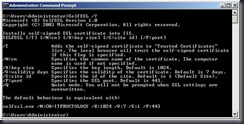
Note the default behavior. If you only typed SelfSSL you would get a certificate with your local machine name (“ITProctology” in my case), good for 7 days, with a 1024 bit key, bound to web site 1 (but I don’t have one..) and port 443. All fine.
I want to generate a certificate using my local machine name, good for 60 days, and have it automatically registered into the Trusted Root Certificate Authority of my server.
To do this I type: SelfSSL /V:60 /T (I am going to accept all the other defaults)
I am prompted to replace the SSL settings for site 1 – say yes. (if you say no, the certificate is not created nor registered with the Trusted Root CA).
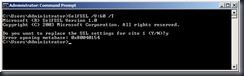
Oh no, I have an error..that I can freely ignore, IIS isn’t here (no metabase) so no problem.
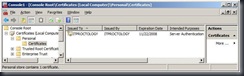
Now, open up the MMC, add the Certificates snap-in for the Computer account.
You will notice that you have a Personal certificate issued to and by your machine name.
If you open the Trusted Root CA, you will see that it is registered there as well.
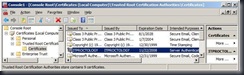
Easy enough.
Create the WinRM HTTPS listener
Now we need to create the Windows Remote Management listener and bind it to the certificate.
Stay in the Certificates MMC.
Select the self signed certificate from the Personal store. Double click it to open it.
Select the Details tab. Scroll down to the Thumbprint field and select it.
Select and copy the Thumbprint in the details window so you can insert it in the next step.
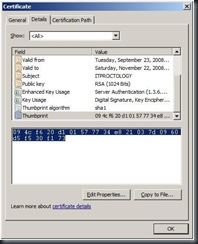
Return to the command prompt
Type: winrm create winrm/config/listener?Address=*+Transport=HTTPS @{Hostname=”<the name of your server>”;CertificateThumbprint=”<Paste from the previous step and remove the spaces>”}
*Be sure to remove the spaces from the thumbprint string
This command creates a listener on the HTTPS port (443) using any / all network address of the server, and my SelfSSL generated certificate.
Mine looks like this:
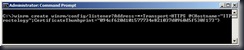
After hitting return I get a confirmation message that the listener created.
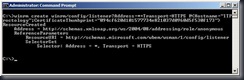
Modifying the Firewall rules (if necessary)
Now, we are working with Server 2008 here. If I had run winrm quickconfig I would end up with the default HTTP listener and the built-in, inbound, firewall rule is enabled. Also, my server is in a workgroup so it is pretty shut down by the firewall.
There isn’t a built-in rule for using WinRM with SSL so we will have to create our own.
Open Windows Firewall with Advanced Security from the Administrative Tools menu.
Right click the Inbound Rules and select New Rule – the new rule wizard opens.
I want to enable a port (443 to be exact – remember no IIS, so this has not been opened for any previous purpose or by any other widget)
Select the port radio button.
On the Protocol and Ports screen select TCP and enter the specific port 443.
On the Action screen select Allow the connection.
For Profile I am going to select all three, since my server is in a workgroup.
Give the rule a name and you are done.
You should see your new Rule, and it should be enabled (green check box).
Test your configuration
This is always one of those steps that no one does. Actually, I totally forgot about the firewall rules until I did this.
At your server type and connection and a command, such as:
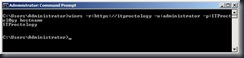
If I used HTTP I would have an error, since I only enabled an HTTPS listener.
To check your WinRM service configuration:
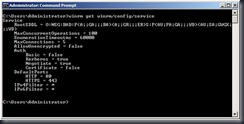
Accepting the certificate from the remote machine
From my remote machine I need to accept the self signed certificate so that I can use it.
Ay my remote machine I open Internet Explorer and type HTTPS://<my other server name> and after I moment I am greeted with a certificate warning.
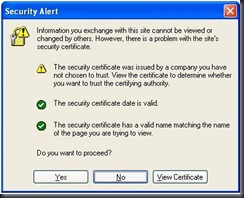
Select View Certificate.
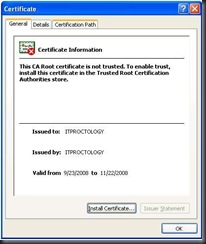
Select Install Certificate.
Accept and import the certificate and key pair and complete the wizard.
Now select Yes to proceed.
And I get a 404 page not found error – perfect, exactly what I expect.
Testing the connection
From the client, open a command prompt and type the same command that we typed at the Server (above).
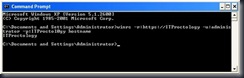
It works. Now you have a working WinRM listener using HTTPS, nice and secure.
Troubleshooting
The biggest items that you can run into are:
The firewall – we talked about that.
WinRM security – I didn’t touch that.
WinRM security might need to be modified to allow communication to properly flow; it totally depends on the situation.
Basic security might need to be enabled. Hosts might need to be trusted. In the case of HTTPS encryption might need to be turned off.
This could be an entire post all to itself. I will save it for later.
.


