I explain this in the forums every so often.
Folks Create a VM, then a few Checkpoints. And before they know it they are in that horrific Paused-Critical state with their VMs.
All because they are running out of storage.
In the end, it comes down to many folks not really understanding how this happened in the first place.
It really goes back to the fact that Checkpoints use differencing disks. And each differencing disk has the potential of consuming as much disk space as its parent.
First of all; the warnings:
Be sure to only delete checkpoints through the Hyper-V Manager.
Do not attempt to manually delete AVHD files on the local file system.
Also, dynamic disks do not matter. Whether your VM began with a dynamic disk or a fixed disk makes no difference.
A dynamic disk just gives the illusion of consuming less space as the full potential of the disk is not realized.
But all differencing disks are dynamic, regardless if the parent was fixed or dynamic.
The root concept here is:
Each Checkpoint disk has the potential of consuming the maximum amount of disk space that its parent did.
For example: Say you make a VM with the default of a 127Gb dynamic virtual disk (you have the potential of consuming 127Gb of storage).
You install an OS and only 14Gb of physical storage is used.
You then take a Checkpoint. Now, you have the root 14Gb, and the potential to consume another 127Gb of additional storage.
Time passes and this Checkpoint consumes 50Gb of storage. 14 + 50 = 64Gb consumed.
You now take another Checkpoint. And all kinds of stuff happens in that VM OS.
You install Visual Studio create a database application, who knows.
And with all that the current state is now consuming 80Gb of Storage.
You have only increased the disk use by 30Gb.
But, with the Checkpoint tree in place you have now consumed 14 + 50 + 80 = 144Gb.
Beyond the 127Gb limit of the virtual disk.
Because of the potential of each Checkpoint being able to consume 127Gb (of VM disk change) all by itself.
Side by side with this is folks that use Checkpoints or differencing disks with the false idea that they will save storage. Over time, they save nothing and add complexity.
Unless you are doing test and are constantly tossing away VM disks and creating new ones, using differencing disks with the argument of reducing storage use is a very false assumption.
Showing posts with label snapshot. Show all posts
Showing posts with label snapshot. Show all posts
Wednesday, March 2, 2016


Monday, October 7, 2013
Exporting the VHD of a running VM with Hyper-V 2012
A co-worker recently asked me about how to clone / export a running VM on Hyper-V 2012.
My first reply was; “upgrade to Hyper-V 2012 R2 and it is built-in”.
Unfortunately that didn’t meet his needs, he is stuck in the Hyper-V 2012 world for a bit.
I came up with a process, it is not a pretty process, that is within all the parameters of file locking, doing things the way that you ‘should’, etc.
The key thing to wanting to ‘clone’ or export a VM is that you really want the virtual disk. That is the ‘state’ of the machine. The settings are easily copied and relatively incidental, the most important part is the virtual disk.
I say that because this entire convoluted process is all about getting a very clean virtual disk state. In this entire process, the settings of the machine (CPU, RAM, dynamic memory, virtual switch attachment, etc.) don’t matter. And in the real world (outside of my little perfect test world) they really don’t matter until you Import.
Enough rambling on. So, what is this process anyway? In a nutshell it is:
If you take a snapshot of a VM, you can then add a differencing disk to the parent disk of the snapshot, create a VM from that, export that VM, then destroy the VM, then destroy the differencing disk.
Because this is not a snapshot, with the export Hyper-V gives you the differencing disk plus the parent.
If you exported a snapshot you get a single virtual disk, since Hyper-V does special things with AVHDX files.
If you want a single file, then you merge the diff that is in the export.
I know that some of my blog readers dream in command line, so here comes the PowerShell.
Special note: This is specific to Hyper-V 2012 and works because of live merging and the built-in PowerShell provider. Hyper-V 2012 R2 does not need all this mess, just take a snapshot and Export. Hyper-V 2008 or 2008 R2 does not have a built-in PowerShell provider, but you could do all this with WMI.
 $vm = get-vm "datest"

# I always want 'now' so we take our own snapshot
$checkPoint = Checkpoint-VM -VM $vm -SnapshotName "clone" -Passthru

# Create a differencing disk and link it to the disk of the snapshot.
$diffVhd = New-VHD -Differencing -ParentPath $checkPoint.HardDrives[0].Path -Path ("D:\Test\" + $checkPoint.Name + ".vhdx")

# If you really care about the exact configuration of your VM and want to Import it on the other side, then do the configuration only export using WMI:  http://blogs.msdn.com/b/virtual_pc_guy/archive/2010/03/24/performing-a-configuration-only-export-import-on-hyper-v.aspx
# on the Import side you would 'fix-up' the configuration and use the merged new disk from later on in this example.  http://itproctology.blogspot.com/2012/08/handling-import-vm-errors-in-server.html

$clone = New-VM -Name $checkPoint.Name -VHDPath $diffVhd.Path

Export-vm -VM $clone -Path D:\Test -Passthru

Remove-VM -VM $clone -Force
Remove-Item $diffVhd.Path

$vhds = Get-ChildItem -Path D:\test -Recurse -File -Include "*.vhd*" | Get-VHD

foreach ($vhd in $vhds) {
    if ($vhd.VhdType -eq "Differencing") {
        $parent = Get-Item $vhd.ParentPath

        Merge-VHD $vhd.Path -Force
    }
}
I am going to mention it again. I am using the Export process to get a clean virtual disk, not to have a proper VM configuration.
Use Ben’s Configuration Only export to get the configuration XML. Then on Import use the Fix-up methodology to point to the new VHD.
Sounds like I need a second blog to put this all together.
Tuesday, May 15, 2012
Estimating space for Hyper-V snapshots
A forum post inspired me to not directly answer a question this morning, but rather explain something so that folks can think about it instead.
The original post asked the following:
3 nodes Windows server 2008 R2
I have 3 nodes Hyper-V Cluster CSV in fiber channel with a multiple volumes.
1.What the amount of free space, I should keep the volume csv not to fail for lack of space.
2. Can I create a new volume and configure snapshots to be saved only in this new volume?
3. What is the recommended size for the other volume to store the snapshots.
I see two ways to answer this -
- directly answer question #2 and wait for the individual to fail
- Attempt to answer #1 and #3 (which estimation here is nearly impossible – due to chaos and randomness).
I jumped straight to a description of the technology – which I have not blogged about for some time, but it just seems to linger.
Here is my response:
You as asking questions about how to size a snapshot volume as if you have a background with ESX / VMware.
A snapshot is a moment in time - a differencing disk and configuration. Not a location where copies of VMs are saved off to.
The disk portion of a snapshot uses a differencing disk. Each differencing disk has the potential to grow to the full size of its parent. If its parent is a fixed disk, it will get that big - if it is a dynamic disk it can reach the maximum.
So, in theory - one snapshot can double the amount of storage required for a VM.
Also, a snapshot location is a runtime location. Where the snapshot is located is where the VM is now running from - until that snapshots is deleted and the snapshot is merged back in.
Knowing this, don't plan on using a slower or different class of storage - unless you are very specific and consistent about how you use snapshots and take this into consideration.
By default snapshots are in the same location as the VHD (and as the VM) - Hyper-V (the product) implemented this model with the R2 release because folks were getting into all kinds of trouble by separating the VM snapshots from configuration from VHD and when it came time to upgrade storage or migrate the VMs wound up broken.
So, you can separate the locations, but you need to be clear on how that benefits you. It is more about your process and procedure than the technology.
You might find this useful: http://itproctology.blogspot.com/search?q=snapshot
On a side note:
There is a growing swell in the Hyper-V forums of questions where folks just want to do something but are not taking the time to understand the implementation, they just push on and have problems. Back in the day we used to refer to this as RTFM. But you can’t say that in a forum. But I plead with you, read the manual.
Wednesday, April 29, 2009
MSFT finally talks snapshots in detail
Finally, after a long time of answering forums posts and my own posts here.
Ben Armstrong (or VirtualPC Guy fame) has posted a series of articles regarding snapshots and snapshot behavior.
Please, read and enjoy. These are not going away any time soon.
Where are my snapshot files?
http://blogs.msdn.com/virtual_pc_guy/archive/2009/04/13/where-are-my-snapshot-files-hyper-v.aspx
What happens when I delete a snapshot?
What happens when a snapshot is being merged?
Why does it take so long to delete a virtual machine with snapshots?
What happens if I start a virtual machine that is merging snapshot files?
Should virtual machine snapshots be used in production?
Thursday, April 9, 2009
Never resize a VHD with snapshots or differencing disks – more about differencing disks
I keep seeing this item coming up in the forums over and over again.
For some reason I need to make the virtual disk of my VM larger (maybe I downloaded too many patches, maybe too many temp files, maybe too many log files).
The reason does not really matter.
So I open the Edit Disk wizard, I find the VHD and I Expand the virtual disk.
Excellent, now my VM has more space and I go into the operating system and diskpart and perform the actions that I need to for the OS to use the additional space.
This works all to well when all you have is a single VHD. One VHD, no snapshots, no differencing disks.
I have written about snapshots quite a bit over the past year.
A snapshot is a moment in time. The technology that Hyper-V uses to achieve this is a Differencing Disk.
The differencing disk is a child disk that is linked to its parent. The easiest way to describe the concept of the differencing disk is to think of overlays.
In the era of the small hard disk we used to think about sectors and blocks. But things have changed, and most folks don’t concern themselves with that anymore – a disk is a place for stuff and that place has a capacity and that is all we really concern ourselves with. It is the blocks and sectors that form the map that we need to be aware of. Think of it like a dart board, but wil ar more rings.
The root VHD is the map of a disk. A digital representation of a physical hard disk. It has blocks, sectors, etc.
The differencing disk is also a map just like its parent, however, it only contains the blocks and sectors of its parent that are different, than the parent.
To begin my analogy, I am going to think of the single VHD as a map or drawing.

Adding a differencing disk (taking a snapshot) is like laying a piece of tracing paper over a drawing, and only coloring in some features (the changes from the point the snapshot was made).

The drawing does not change, only the way the empty places are colored in.
If you add a second differencing disk (now a chain of three virtual disks – a grandparent VHD, a parent differencing disk – a child differencing disk). This lays a second piece of tracing paper over the drawing, and we proceed to change how the empty spaces are colored in.

What happens when you resize the VHD?
When you resize the VHD, the disk map or drawing, is changed. I have a different combination of sectors and blocks.

Now, the spaces that I colored in on my tracing paper (differencing disks) no longer aligns with the empty spaces in the drawing. The result is a really ugly picture.

The result with my VM is that I just broke the chain. And I broke it right at the root.
There is currently no method (that I know of) that will allow resizing of a virtual disk that contains snapshots – differencing disks.
If you need to resize the virtual disk of a VM and there are snapshots then the snapshots must be deleted (and the VM turned off, then wait patiently). This has the end effect of taking each piece of tracing paper and applying its colors onto the layer underneath. The term is called merging.
The layers of tracing paper are applied back to the primary drawing, the root VHD.
In the end, you have a single VHD that you can safely resize.
Is this the only way you can end up with a single VHD? No I can think of at least a couple more creative ways to end up with a single VHD for resizing.
The key is that you cannot resize a virtual disk with snapshots or differencing disks.
I hope that someone that is thinking about doing this finds this article in Google or Live Search and saves themselves some big recovery pain.
Tuesday, May 6, 2008
Hyper-V Snapshots, more about how they work
Previously, I wrote about snapshots with Hyper-V and the architecture behind them.
There still seems to be some confusion among administrators regarding them, so let’s take another look.
The big first hurdle to understanding snapshots is that a snapshot is a moment in time.
(Start thinking like Lieutenant Daniels in Star Trek Enterprise and forget the Vulcan Science Directorate opinion that time travel is impossible).
The second concept is how snapshots work.
I have a virtual machine that I will call “TestVM.” I just created TestVM using the new virtual machine wizard and finished installing Windows Server 2008. My intent with TestVM is to test various WS08 Roles and Features.
My root run state is my fresh and clean install of WS08.
To make an offline snapshot I shutdown the VM and take a snapshot – this snapshot is (by default) labeled with the moment in time of ‘now’ (5/6/08 1:06 pm).
In the background Hyper-V copied my hardware configuration and attached a differencing disk to my TestVH.VHD thus when I power on the VM anything that I do while the VM is running will be written to the differencing disk.
If I power on the VM and do something then decide that what I did was ‘bad’ for my VM I perform a Revert. What does the revert do?
The revert takes the differencing disk that my current running state is using and throws it away and creates a new one, thus returning me back to the moment in time that the snapshot was taken.
After performing the revert I added IIS and ASP.net. This is good. But I want to go back to my clean snapshot moment (saving my current moment) and do something different. In this case I choose apply. And I select the option to “take a snapshot and apply”.
Now I have a new Online snapshot of ‘now’ (5/6/08 1:12pm) and I return back to my previous Offline snapshot.
In the background Hyper-V did something a bit different. Hyper-V copied my hardware configuration, but it also saved my running memory state, and created a differencing disk for when I return to that snapshot.
Now that I have gone back in time I am running within (yet another) new differencing disk attached to TestVM.VHD
Wow, this is getting deep. And it can. You can build an entire tree with many branches.
What I need to remember is what each moment in time represents (I can rename snapshots), that they return me to a moment in time that includes the hardware configuration (in case I change that), the disk state of the VM (whatever was written) and the running state of the VM at that moment in time.
You can see how this is pretty powerful in a test and development type of scenario. But production is a totally different issue, and smells like a new post.
There still seems to be some confusion among administrators regarding them, so let’s take another look.
The big first hurdle to understanding snapshots is that a snapshot is a moment in time.
(Start thinking like Lieutenant Daniels in Star Trek Enterprise and forget the Vulcan Science Directorate opinion that time travel is impossible).
The second concept is how snapshots work.
I have a virtual machine that I will call “TestVM.” I just created TestVM using the new virtual machine wizard and finished installing Windows Server 2008. My intent with TestVM is to test various WS08 Roles and Features.
My root run state is my fresh and clean install of WS08.
To make an offline snapshot I shutdown the VM and take a snapshot – this snapshot is (by default) labeled with the moment in time of ‘now’ (5/6/08 1:06 pm).
In the background Hyper-V copied my hardware configuration and attached a differencing disk to my TestVH.VHD thus when I power on the VM anything that I do while the VM is running will be written to the differencing disk.
If I power on the VM and do something then decide that what I did was ‘bad’ for my VM I perform a Revert. What does the revert do?
The revert takes the differencing disk that my current running state is using and throws it away and creates a new one, thus returning me back to the moment in time that the snapshot was taken.
After performing the revert I added IIS and ASP.net. This is good. But I want to go back to my clean snapshot moment (saving my current moment) and do something different. In this case I choose apply. And I select the option to “take a snapshot and apply”.
Now I have a new Online snapshot of ‘now’ (5/6/08 1:12pm) and I return back to my previous Offline snapshot.
In the background Hyper-V did something a bit different. Hyper-V copied my hardware configuration, but it also saved my running memory state, and created a differencing disk for when I return to that snapshot.
Now that I have gone back in time I am running within (yet another) new differencing disk attached to TestVM.VHD
Wow, this is getting deep. And it can. You can build an entire tree with many branches.
What I need to remember is what each moment in time represents (I can rename snapshots), that they return me to a moment in time that includes the hardware configuration (in case I change that), the disk state of the VM (whatever was written) and the running state of the VM at that moment in time.
You can see how this is pretty powerful in a test and development type of scenario. But production is a totally different issue, and smells like a new post.
Friday, March 7, 2008
Snapshotting in Hyper-V does not equal VMware checkpointing.
The snapshotting concept under Hyper-V
For all of you familiar with ESX server and Virtual Center (or using a 3rd party product to do backups using checkpoints) you will have to think about things a little differently.
First of all.
Is using Hyper-V snapshots a good method to backup your VMs?
Answer: No. It isn't a backup method at all. It provides the ability to return to a defined point in time in the life of your VM. It is a very useful tool for testing application upgrades and service packs.
What are snapshots then (if they aren’t the same as a checkpoint)?
The best way that I have been able to describe snapshots is by using a timeline or traveling in time.
A snapshot is a moment in time that you can return to. And going right along with that - you can freely move forward in time, but moving backward in time will alter your future.
"Don't alter the timeline" - we have heard it hundreds of times (especially if you watch Star Trek Enterprise). Well, then you also hear the Vulcans state that time travel is impossible..
Snapshots in Hyper-V are all linked together, a single snapshot cannot stand alone (at least not without doing some tricks) as it is linked to its parent and so on.
The concept looks like this:
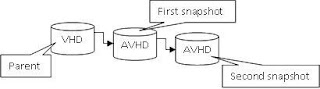 You begin with a base VHD. When a snapshot is taken an AVHD disk is created and the configuration of the VM is updated to use the AVHD as the current virtual hard disk.
(An AVHD is a snapshot specific differencing disk that is being used as the running point of a VM)
The AVHD disk is now the point where all system changes are written from this time forward - the base VHD is no longer being modified. And the AVHD is linked to (dependent upon) its parent disk. If you were to move one of these two files the VM is broken.
You can continue to spawn off additional snapshots. Each snapshot is linked to its parent in a linear (timeline) arrangement. They cannot link in a branched tree arrangement because that would create dead branches.
When you go back to a previous point in time (return to a snapshot) everything to the right of that point in time is destroyed (rendered unusable) because you altered the VM at a previous point.
Managing snapshots
Okay, what can I do with snapshots besides take them?
You can select a shapshot for a VM and “apply” it or “revert” to it.
This takes you to that moment in time and begins running the VM at that point in time. (You begin using the AVHD file that was created at that point in time).
“Revert” takes you back one step while “apply” can take you back many snapshots in one step.
Deleting a snapshot removes it from the tree.
You might wonder “if all of the snapshots are linked together how can I delete a snapshot out of the middle?”
This is because in the background Hyper-V is maintaining the integrity of your VM by combining the various states of your VM (or flattening the structure of your differencing disk timeline). If this didn’t happen your entire VM would be broken – that would be a serious bummer.
The merge process happens quietly in the background when a VM is powered off.
That is an important thing to remember – the VM must be powered off for all of the disks to be merged together.
This counts for anytime that snapshots are modified or merged into the Parent.
Delete a snapshot and its subtree.
This process deletes a snapshot and any other snapshots that are to the right of it in the timeline. The result is just that any snapshots taken to the right of the point in your timeline that you elected to perform this operation are all committed and merged into your current snapshot.
What if you want to “flatten” your tree and have everything written back to the base VHD?
Delete each of your snapshots one by one, even the current running one, and wait for the changes to be merged back into your base VHD. This can take a long time, and the VM needs to be powered down.
Deleting snapshots does not move you back in time, only applying a snapshot does that. Deleting snapshots merges your changes into another disk within the timeline.
Oh, and why don’t I have a bunch of screenshots of the GUI?
Because I figure that most Server Admins are smart enough to handle a GUI ;-)
For all of you familiar with ESX server and Virtual Center (or using a 3rd party product to do backups using checkpoints) you will have to think about things a little differently.
First of all.
Is using Hyper-V snapshots a good method to backup your VMs?
Answer: No. It isn't a backup method at all. It provides the ability to return to a defined point in time in the life of your VM. It is a very useful tool for testing application upgrades and service packs.
What are snapshots then (if they aren’t the same as a checkpoint)?
The best way that I have been able to describe snapshots is by using a timeline or traveling in time.
A snapshot is a moment in time that you can return to. And going right along with that - you can freely move forward in time, but moving backward in time will alter your future.
"Don't alter the timeline" - we have heard it hundreds of times (especially if you watch Star Trek Enterprise). Well, then you also hear the Vulcans state that time travel is impossible..
Snapshots in Hyper-V are all linked together, a single snapshot cannot stand alone (at least not without doing some tricks) as it is linked to its parent and so on.
The concept looks like this:
You begin with a base VHD. When a snapshot is taken an AVHD disk is created and the configuration of the VM is updated to use the AVHD as the current virtual hard disk.(An AVHD is a snapshot specific differencing disk that is being used as the running point of a VM)
The AVHD disk is now the point where all system changes are written from this time forward - the base VHD is no longer being modified. And the AVHD is linked to (dependent upon) its parent disk. If you were to move one of these two files the VM is broken.
You can continue to spawn off additional snapshots. Each snapshot is linked to its parent in a linear (timeline) arrangement. They cannot link in a branched tree arrangement because that would create dead branches.
When you go back to a previous point in time (return to a snapshot) everything to the right of that point in time is destroyed (rendered unusable) because you altered the VM at a previous point.
Managing snapshots
Okay, what can I do with snapshots besides take them?
You can select a shapshot for a VM and “apply” it or “revert” to it.
This takes you to that moment in time and begins running the VM at that point in time. (You begin using the AVHD file that was created at that point in time).
“Revert” takes you back one step while “apply” can take you back many snapshots in one step.
Deleting a snapshot removes it from the tree.
You might wonder “if all of the snapshots are linked together how can I delete a snapshot out of the middle?”
This is because in the background Hyper-V is maintaining the integrity of your VM by combining the various states of your VM (or flattening the structure of your differencing disk timeline). If this didn’t happen your entire VM would be broken – that would be a serious bummer.
The merge process happens quietly in the background when a VM is powered off.
That is an important thing to remember – the VM must be powered off for all of the disks to be merged together.
This counts for anytime that snapshots are modified or merged into the Parent.
Delete a snapshot and its subtree.
This process deletes a snapshot and any other snapshots that are to the right of it in the timeline. The result is just that any snapshots taken to the right of the point in your timeline that you elected to perform this operation are all committed and merged into your current snapshot.
What if you want to “flatten” your tree and have everything written back to the base VHD?
Delete each of your snapshots one by one, even the current running one, and wait for the changes to be merged back into your base VHD. This can take a long time, and the VM needs to be powered down.
Deleting snapshots does not move you back in time, only applying a snapshot does that. Deleting snapshots merges your changes into another disk within the timeline.
Oh, and why don’t I have a bunch of screenshots of the GUI?
Because I figure that most Server Admins are smart enough to handle a GUI ;-)
Subscribe to:
Posts (Atom)