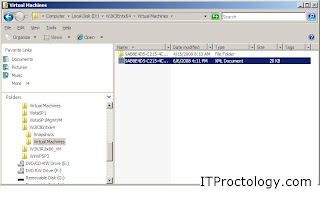
The snapshotting concept under Hyper-V
For all of you familiar with ESX server and Virtual Center (or using a 3rd party product to do backups using checkpoints) you will have to think about things a little differently.
First of all.
Is using Hyper-V snapshots a good method to backup your VMs?
Answer: No. It isn't a backup method at all. It provides the ability to return to a defined point in time in the life of your VM. It is a very useful tool for testing application upgrades and service packs.
What are snapshots then (if they aren’t the same as a checkpoint)?
The best way that I have been able to describe snapshots is by using a timeline or traveling in time.
A snapshot is a moment in time that you can return to. And going right along with that - you can freely move forward in time, but moving backward in time will alter your future.
"Don't alter the timeline" - we have heard it hundreds of times (especially if you watch Star Trek Enterprise). Well, then you also hear the Vulcans state that time travel is impossible..
Snapshots in Hyper-V are all linked together, a single snapshot cannot stand alone (at least not without doing some tricks) as it is linked to its parent and so on.
The concept looks like this:
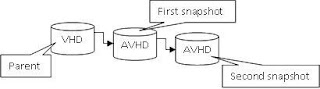
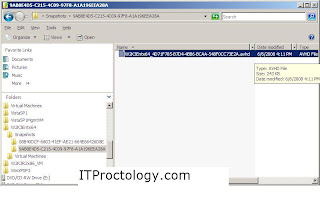
You begin with a base VHD. When a snapshot is taken an AVHD disk is created and the configuration of the VM is updated to use the AVHD as the current virtual hard disk.
(An AVHD is a snapshot specific differencing disk that is being used as the running point of a VM)
The AVHD disk is now the point where all system changes are written from this time forward - the base VHD is no longer being modified. And the AVHD is linked to (dependent upon) its parent disk. If you were to move one of these two files the VM is broken.
You can continue to spawn off additional snapshots. Each snapshot is linked to its parent in a linear (timeline) arrangement. They cannot link in a branched tree arrangement because that would create dead branches.
When you go back to a previous point in time (return to a snapshot) everything to the right of that point in time is destroyed (rendered unusable) because you altered the VM at a previous point.
Managing snapshotsOkay, what can I do with snapshots besides take them?
You can select a shapshot for a VM and “apply” it or “revert” to it.
This takes you to that moment in time and begins running the VM at that point in time. (You begin using the AVHD file that was created at that point in time).
“Revert” takes you back one step while “apply” can take you back many snapshots in one step.
Deleting a snapshot removes it from the tree.
You might wonder “if all of the snapshots are linked together how can I delete a snapshot out of the middle?”
This is because in the background Hyper-V is maintaining the integrity of your VM by combining the various states of your VM (or flattening the structure of your differencing disk timeline). If this didn’t happen your entire VM would be broken – that would be a serious bummer.
The merge process happens quietly in the background when a VM is powered off.
That is an important thing to remember – the VM must be powered off for all of the disks to be merged together.
This counts for anytime that snapshots are modified or merged into the Parent.
Delete a snapshot and its subtree.
This process deletes a snapshot and any other snapshots that are to the right of it in the timeline. The result is just that any snapshots taken to the right of the point in your timeline that you elected to perform this operation are all committed and merged into your current snapshot.
What if you want to “flatten” your tree and have everything written back to the base VHD?
Delete each of your snapshots one by one, even the current running one, and wait for the changes to be merged back into your base VHD. This can take a long time, and the VM needs to be powered down.
Deleting snapshots does not move you back in time, only applying a snapshot does that. Deleting snapshots merges your changes into another disk within the timeline.
Oh, and why don’t I have a bunch of screenshots of the GUI?
Because I figure that most Server Admins are smart enough to handle a GUI ;-)