I recently posted this in the TechNet forums and thoguht that it needed a bit longer life.
Mostly, this is about understanding virtual machine networking under a hypervisor (ESX, XenSERver, Hyper-V, etc.) and that they all basically work the same.
The simplest way to accomplish isolating VM traffic into a DMZ is to do a form of physical network isolation.
Your Host has two physical NICs.
Connect NIC 1 to the management network. Connect NIC 2 to the DMZ network.
Create two External Virtual Network Switches - one per physical NIC and name them appropriately.
Connect your VMs only to the DMZ virtual network switch (using the VM settings).
Login to your Hyper-V Host console - check the network connections. You most likely have a Virtual Network Adapter (possibly two).
You may end up with one for each virtual network switch. If this is the case, open the properties of the Virtual Network Adapter that is attached to the DMZ virtual Network switch and remove (uncheck) all protocols - this will prevent any traffic from the Host into the DMZ and vice versa.
The alternative is VLAN IDs.
Now..backing up.
Looking at network connections within the Hyper-V console can be confusing.
When you first install the Hyper-V role you have Physical NICs and properties just like you know and love from any Windows server. As soon as you create an external virtual network switch the physical NIC only has the virtual network protocol bound to it (it is no longer 'owned' by the Host, but instead by the Hypervisor) - leave this NIC alone.
If your Host was using this physical NIC it is now given a new virtual network adapter that is attached to the virtual network switch which is in turn using the physical NIC - therefore keeping the host on the same physical network.
The part that makes this confusing is that we CAN look at the network connections, and we CAN play with things just like we have with Windows Server for years. However, now we have to realize that the architecture is different - a mix of what we knew, a dash of what we saw with Virtual Server on Server 2003, and parts that are totally new becuase we have a hypervisor and a virtualization stack.
Tuesday, June 24, 2008


Saturday, June 7, 2008
How to manually merge Hyper-V snapshots into a single VHD
Okay, so you have to recreate your VM configuration and you absolutely know that your VM had a snapshot at some time.
You also realize that if you just link to the base VHD that you will lose the current state of your VM - what do you do?
Then open up that configuration file and locate the information for the virtual hard disk. In the screen shot below is the location of the current running state of the VM. The snapshot is a point in time to return to, the current running state is the "Now" and is contained in a differencing disk (AVHD) after a snapshot has been taken.
Now, find that AVHD file within the file system and rename it to VHD.
Now, go back tot he Hyper-V manager and open the "Edit Disk" wizard - Select the disk that you renamed above, and merge this disk into the one before it.
This process can be continued until all of the snapshots are merged back into a single VHD (the base VHD).
You also realize that if you just link to the base VHD that you will lose the current state of your VM - what do you do?
You manually merge your snapshots into your base VHD before you boot your VM. (I am assuming that you know how to connect to an existing VHD using the new VM wizard).
Merging of snapshots can be performed manually. This is achieved by:
- On your Hyper-V host.Power off the Virtual Machine.
- Make a copy of the VHD and its corresponding AVHD files.
- Rename the AVHD extension to VHD.
- Write down the order of the disks from youngest to oldest (the oldest should be the root VHD). You can do this by looking at the last modified time stamp on the origional AVHD files, find the one that last changed. And find the last one that changed before it.
- In the Hyper-V manager, open the Edit Disk wizardBrowse to the youngest VHD in the chain, then choose 'reconnect' to point to the next youngest (the one that came before).
- Open the Edit Disk wizard a second time and merge.
- Then repeat the process until you have only a single VHD.
In a disaster case, you need to recover a copy of the root VHD prior to attaching it to a new VM and booting it (the act of booting it, modifies it)
Usually the most difficult part of this process is finding the last AVHD (differencing disk) in the chain.
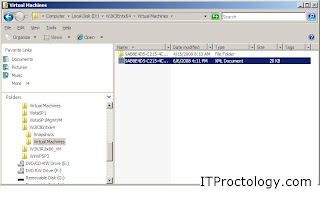
The easiest way to do this is to find the configuration file for the VM.


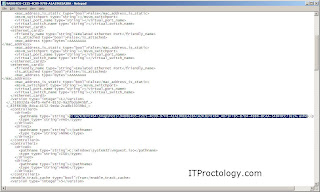
Then open up that configuration file and locate the information for the virtual hard disk. In the screen shot below is the location of the current running state of the VM. The snapshot is a point in time to return to, the current running state is the "Now" and is contained in a differencing disk (AVHD) after a snapshot has been taken.

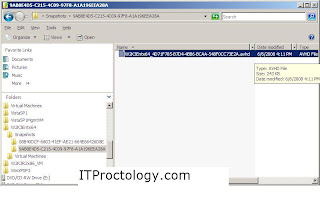
Now, find that AVHD file within the file system and rename it to VHD.

Now, go back tot he Hyper-V manager and open the "Edit Disk" wizard - Select the disk that you renamed above, and merge this disk into the one before it.
This process can be continued until all of the snapshots are merged back into a single VHD (the base VHD).
Hyper-V lost my vm and I connected to the vhd and lost everything..now I am panicking
I have read this story on the TechNet forums a few times. Something happened in Hyper-V, either a patch, or a temporary burp, or something else happened that caused a VM to be 'lost' from the Hyper-V console.
That might not be the worst thing.
Then a well meaning and informed administrator creates a new VM configuration attaching tot he existing VHD only to discover that a great deal of time on the life of the VM is gone.
What happened??
Most likely what happened was that your VM had a snapshot(s). If you claim that it didn't - think back, did you ever create one, then delete it? (and, you have not powered off the VM for an extended period of time to allow that deleted snapshot to be merged back into the base vhd..)
First of all the state of your VM may have been lost for good. The reason? - snapshots
I have blogged a bit about snapshots (here and here, and here) and they continue to cause confusion. I am guessing that the confusion comes from a lack of understanding of the underlying system.
The state of the VM is lost because the differencing disk integrity is broken. A differencing disk is a vhd that is chained onto an existing vhd. The first vhd (the base) stops receiving writes and the new vhd (the differencing disk) receives all of the writes to disk.the other item to know is that vhd is block based - therefore the differencing disk depends on the fact that the base disk does not change. If at any time you connect tot he base disk and modify it (even slightly) - the differencing disk chain is broken and there is not a tool (yet) that can put it back together.
Okay, you are now the better informed administrator - you made this mistake once and you tell yourself - never again!
This is a new post..
That might not be the worst thing.
Then a well meaning and informed administrator creates a new VM configuration attaching tot he existing VHD only to discover that a great deal of time on the life of the VM is gone.
What happened??
Most likely what happened was that your VM had a snapshot(s). If you claim that it didn't - think back, did you ever create one, then delete it? (and, you have not powered off the VM for an extended period of time to allow that deleted snapshot to be merged back into the base vhd..)
First of all the state of your VM may have been lost for good. The reason? - snapshots
I have blogged a bit about snapshots (here and here, and here) and they continue to cause confusion. I am guessing that the confusion comes from a lack of understanding of the underlying system.
The state of the VM is lost because the differencing disk integrity is broken. A differencing disk is a vhd that is chained onto an existing vhd. The first vhd (the base) stops receiving writes and the new vhd (the differencing disk) receives all of the writes to disk.the other item to know is that vhd is block based - therefore the differencing disk depends on the fact that the base disk does not change. If at any time you connect tot he base disk and modify it (even slightly) - the differencing disk chain is broken and there is not a tool (yet) that can put it back together.
Okay, you are now the better informed administrator - you made this mistake once and you tell yourself - never again!
This is a new post..
Monday, June 2, 2008
Remotely managing Server Core using compmgmt.msc
We all have those days when we want a nice graphical view of a Windows server so we can quickly compare installations, we can't remember the command line syntax properly, or (as some CLI zealots would put it) we just want a nice lazy interface.
Well, if you try to connect to Server Core - we all have run into the standard firewall rule of enabling Remote Management on Server Core. Well...this is just a portion of the picture.
What if you want to bring a disk volume on-line (this is what brought me to this in the first place), and you don't want to type and then take it back off-line. (darn it, I want my right click - I want to do this relatively quickly, and I don't want to fish around for the CLI commands).
My Google-fu was working well this morning and I found an excellent posting by Sander Berkouwer about getting all the rules and settings right to remotely administer a Server Core WS08 install using the Computer Management MMC snap-in.
Here it is:
http://blogs.dirteam.com/blogs/sanderberkouwer/archive/2008/04/03/remotely-managing-your-server-core-using-compmgmt-msc.aspx
Well, if you try to connect to Server Core - we all have run into the standard firewall rule of enabling Remote Management on Server Core. Well...this is just a portion of the picture.
What if you want to bring a disk volume on-line (this is what brought me to this in the first place), and you don't want to type and then take it back off-line. (darn it, I want my right click - I want to do this relatively quickly, and I don't want to fish around for the CLI commands).
My Google-fu was working well this morning and I found an excellent posting by Sander Berkouwer about getting all the rules and settings right to remotely administer a Server Core WS08 install using the Computer Management MMC snap-in.
Here it is:
http://blogs.dirteam.com/blogs/sanderberkouwer/archive/2008/04/03/remotely-managing-your-server-core-using-compmgmt-msc.aspx
Thursday, May 15, 2008
Hyper-V + TCPOffloading = poor network performance?
* Update * - Here I use the term TCP Offload. The actual feature is properly termed TCP Task Offload. TCP Offload is better referred to as TCP Chimney and that should never be turned off.
Here are some tips that I have passed on regarding Hyper-V and TCPOffloading.
http://forums.microsoft.com/TechNet/ShowPost.aspx?PostID=3107983&SiteID=17
In theory TCPOffloading should always make things better. It takes work away from your server OS, thus everything should work better. Right?
As a former System Administrator, I have been disabling TCPOffloading on Windows Servers for years. Always to fix network performance issues. This works for SQL servers, Terminal Servers, and now Hyper-V servers.
Why? I honestly have not gotten deep enough into the issue to fully understand why, I just know that if your network throughput is pathetic on a Windows Server that is running some application or role, try this trick.
(as always take caution, this might work, it might have no effect - I take no risk from you)
In this case, focus on the NIC driver on the base network connection. (not the virtual one that your parent partition uses, but the Physical NIC properties (the NIC with only the Microsoft Virtual Network Swith Protocol enabled))
Make sure it is either the WS08 provided driver, or the latest from the manufacturer (it is usually always safer (read this as: overall more stable) to use the one that ships with Windows - unless you need a feature provided by a different driver)
Try turning off TCP offloading - as this can cause strange behavior on some networks.
Also, with Hyper-V if you are using a manufacturer provided driver and you want to do fancy teaming and stuff like that at the driver level - please make sure the driver has been updated for Hyper-V, or else you will get weird results here as well.
Don't use NIC teaming, or NIC management software unless the manufacturer says it is Hyper-V role happy (not just WS08 happy).
Some NIC teaming management software needs special control of the hardware and it might not work after Hyper-V is installed, since the physical hardware is now shared.
Here are some tips that I have passed on regarding Hyper-V and TCPOffloading.
http://forums.microsoft.com/TechNet/ShowPost.aspx?PostID=3107983&SiteID=17
In theory TCPOffloading should always make things better. It takes work away from your server OS, thus everything should work better. Right?
As a former System Administrator, I have been disabling TCPOffloading on Windows Servers for years. Always to fix network performance issues. This works for SQL servers, Terminal Servers, and now Hyper-V servers.
Why? I honestly have not gotten deep enough into the issue to fully understand why, I just know that if your network throughput is pathetic on a Windows Server that is running some application or role, try this trick.
(as always take caution, this might work, it might have no effect - I take no risk from you)
In this case, focus on the NIC driver on the base network connection. (not the virtual one that your parent partition uses, but the Physical NIC properties (the NIC with only the Microsoft Virtual Network Swith Protocol enabled))
Make sure it is either the WS08 provided driver, or the latest from the manufacturer (it is usually always safer (read this as: overall more stable) to use the one that ships with Windows - unless you need a feature provided by a different driver)
Try turning off TCP offloading - as this can cause strange behavior on some networks.
Also, with Hyper-V if you are using a manufacturer provided driver and you want to do fancy teaming and stuff like that at the driver level - please make sure the driver has been updated for Hyper-V, or else you will get weird results here as well.
Don't use NIC teaming, or NIC management software unless the manufacturer says it is Hyper-V role happy (not just WS08 happy).
Some NIC teaming management software needs special control of the hardware and it might not work after Hyper-V is installed, since the physical hardware is now shared.
Subscribe to:
Posts (Atom)