Today, I had the crazy idea of outputting an array in PowerShell as a table, and I wanted to show the index of each array value.
In laymen's terms: I wanted my table output to be line numbered. And I wanted to line numbers to correspond to the position in the array.
Why? because I didn't want the user to type in a name string or a GUID string that they might typo, they could simply enter the index of the item(s).
Trying to solve potential problems upfront, without a bunch of error handling code.
I started out with a PowerShell array that looked something like this:
PS\> $allFlows | ft name, flowid -AutoSize
name flowId
---- ------
bjeDemoFlow_working 70bd3881-8224-11e4-8019-f97967ce66a8
bje_cmdblu 3e155fe0-dc9a-11e4-9dfc-f7587e2f6b74
Pulser_WorkerFlow_Sample f945f94f-fb33-4181-864d-042548497270
Flow d59ae1e8 d59ae1e8-0220-4fd2-b40f-fba971c9cf42
bjeConnectTheDots.io 204b5897-2182-4aef-84fe-1251f1d4943b
StageFlow_1 796d0ff4-94d6-4d1a-b580-f83ab98c7e15
Flow f26aab2f f26aab2f-783b-4c09-b1fc-9e6433e8ab37
Flow c983c204 c983c204-5a87-4947-9bd2-435ac727908a
v2VDA Test ba5f77af-98d1-4651-8c35-c502a72ccea8
Demo_WorkerFlow e7efdac4-663d-4fb6-9b29-3a13aac5fb97
Now for the strange part. How do I number the lines in a way that they correspond to each items position in the array?
Search did not fail me today, but it took a bit of effort to discover an answer in StackOverflow from PowerShell MVP Keith Hill.
And, also looking at Get-Help Format-Table -Examples and realizing that there is an 'expression' option to calculate the value of a field in the table output.
PS\> $allFlows | ft @{Label="number"; Expression={ [array]::IndexOf($allFlows, $_) }}, name, flowid -AutoSize
number name flowId
------ ---- ------
0 bjeDemoFlow_working 70bd3881-8224-11e4-8019-f97967ce66a8
1 bje_cmdblu 3e155fe0-dc9a-11e4-9dfc-f7587e2f6b74
2 Pulser_WorkerFlow_Sample f945f94f-fb33-4181-864d-042548497270
3 Flow d59ae1e8 d59ae1e8-0220-4fd2-b40f-fba971c9cf42
4 bjeConnectTheDots.io 204b5897-2182-4aef-84fe-1251f1d4943b
5 StageFlow_1 796d0ff4-94d6-4d1a-b580-f83ab98c7e15
6 Flow f26aab2f f26aab2f-783b-4c09-b1fc-9e6433e8ab37
7 Flow c983c204 c983c204-5a87-4947-9bd2-435ac727908a
8 v2VDA Test ba5f77af-98d1-4651-8c35-c502a72ccea8
9 Demo_WorkerFlow e7efdac4-663d-4fb6-9b29-3a13aac5fb97
The values for the column are defined as a hashtable @{}
With the Label of the column and the Expression that defines the value.
Pretty nifty new trick to add to my repertoire.
Thursday, July 9, 2015


Wednesday, July 1, 2015
A tale of containers
Containers. It is a word that we keep hearing about lately.
And in the popular vernacular a container refers to a "docker style container".
You say: "But Docker doesn't do containers" And, you are right.
These containers are what was originally known as (and still are) LXC containers and everyone associates with Docker .
Docker is not the container technology, Docker is container management and a container ecosystem. They only made containers easy.
Now, in the virtualization world folks have used this container word for a long time. It has been used to describe the isolation models themselves.
I really wish we had a better word for this type of container, other than 'container'.
With the modern Windows OS we have:
Now, 'container' containers.
A container is a bounded process that can contain processes.
A container is a file system boundary.
And, a container has its own networking stack.
A container shares the kernel and other processes with the machine on which it runs.
The processes in one container cannot see the process in another container.
Container processes interact with each other through the networking stack, just like applications on different machines are required to.
But, to be technical with the language; only the running process is a 'container'. When it is not running it is a container image.
And a container image is similar to an OS image. It has kernel, bootloader, files, and applications.
Now lets complex-ify all of this.
Linux currently has one type of container, LXC.
Windows is actually introducing two types of containers.
Images are another interesting aspect of containers.
If you have played with installing an application with Docker (such as creating a Docker build file) you begin with a base OS (preferably from a trusted source such as Canonical for Ubuntu). Then you layer on OS settings, and application downloads and installations.
In the end, you have this image. And this image is made up of chained folders, similar to the idea of checkpoints (VM snapshots or differencing disks).
However, in the container world, it is files and a file system. No virtual block devices as is said in virtualization circles. A virtual block device is a representation of a hard drive block layout. It is literally raw blocks, just like a hard drive.
Now, does this mean that since Canonical produces a 'docker' image for Ubuntu, that Microsoft will produce a 'docker' image for Windows Server? Most likely in some form.
Nano Server would make a neat base container image, Server Core as well.
Shell based applications would be a bit hairier. And a considerably larger base image since you have all of that Windows Shell in there.
But remember, a container image is a file base system. Now, just think about maintaining that image. The potential of swapping out one of the layers of the image to add an OS patch, or an application update. Not having to destroy, update, and deploy.
Oh, so exciting!
And in the popular vernacular a container refers to a "docker style container".
You say: "But Docker doesn't do containers" And, you are right.
These containers are what was originally known as (and still are) LXC containers and everyone associates with Docker .
Docker is not the container technology, Docker is container management and a container ecosystem. They only made containers easy.
Now, in the virtualization world folks have used this container word for a long time. It has been used to describe the isolation models themselves.
I really wish we had a better word for this type of container, other than 'container'.
With the modern Windows OS we have:
- Process containers: this is a process, it runs in its own memory space, it inherits a security context from either a user or the system, and it shares all aspects of the OS resources. If it has a TCP listener, it must be unique so it does not conflict with others, it has to use RAM nicely or it overruns other processes, and so on.
- Session containers: This is a user session. Enabled by the multi-user kernel. A session is a user security context container and within it are processes. The user is the security boundary.
- machine containers: This is a virtual machine. It can be likened to a bare metal installation. It is very heavy weight in that it is an entire installation. Within it run session containers and process containers. It is a very hard security boundary. It has a networking stack, it does not share resources (file system, RAM, CPU) but it can consume shared resources when running on a hypervisor.
Now, 'container' containers.
A container is a bounded process that can contain processes.
A container is a file system boundary.
And, a container has its own networking stack.
A container shares the kernel and other processes with the machine on which it runs.
The processes in one container cannot see the process in another container.
Container processes interact with each other through the networking stack, just like applications on different machines are required to.
But, to be technical with the language; only the running process is a 'container'. When it is not running it is a container image.
And a container image is similar to an OS image. It has kernel, bootloader, files, and applications.
Now lets complex-ify all of this.
Linux currently has one type of container, LXC.
Windows is actually introducing two types of containers.
- Windows containers - this type of container runs like a process on your workstation. It consumes your available RAM and CPU and a folder full of files. It smells like any application process, except; it has a network stack, and it cannot directly interact with other processes, it can only see its folder on the file system. It is a process in a can. Hence, container.
- Hyper-V containers - this type of container is just like the one above but with a more solid isolation boundary. It gets the benefit of hypervisor CPU and RAM management (fair share), it is forced to play well as a process. And, its meets isolation compliance standards just like a VM does. No shared OS, the image contains the kernel.
Images are another interesting aspect of containers.
If you have played with installing an application with Docker (such as creating a Docker build file) you begin with a base OS (preferably from a trusted source such as Canonical for Ubuntu). Then you layer on OS settings, and application downloads and installations.
In the end, you have this image. And this image is made up of chained folders, similar to the idea of checkpoints (VM snapshots or differencing disks).
However, in the container world, it is files and a file system. No virtual block devices as is said in virtualization circles. A virtual block device is a representation of a hard drive block layout. It is literally raw blocks, just like a hard drive.
Now, does this mean that since Canonical produces a 'docker' image for Ubuntu, that Microsoft will produce a 'docker' image for Windows Server? Most likely in some form.
Nano Server would make a neat base container image, Server Core as well.
Shell based applications would be a bit hairier. And a considerably larger base image since you have all of that Windows Shell in there.
But remember, a container image is a file base system. Now, just think about maintaining that image. The potential of swapping out one of the layers of the image to add an OS patch, or an application update. Not having to destroy, update, and deploy.
Oh, so exciting!
Tuesday, June 2, 2015
Linux VMs not getting IP with Hyper-V wireless external switches
For the past two days I have been building Ubuntu VMs on my laptop which runs Hyper-V.
I would install an Ubuntu VM, then try and update and discover that the VM has an IPv6 address but no IPv4 IP address.
So, off into the land of tweaking Ubuntu. No go.
Next, my kids report router problems. So I assume there is a correlation and I screw around with the router. No change.
I delete and re-create virtual switches. No Change.
After a bit of frustration and some calming attention to detail, I realize that the IPv6 address that my VM is getting is actually self generated, it was not getting it from my ISP (as I originally thought - since we do IPv6).
The one pattern is that; a virtual switch on the wired NIC always works with the VMs and the wireless doesn't.
The other pattern is that Windows VMs are just fine. It is only Linux.
Now. Since this is an external virtual switch that includes a wireless NIC a Network Bridge device is added.

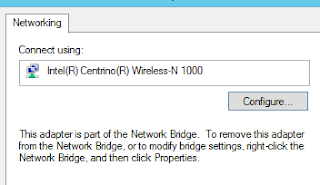

My thinking is; if Network Bridge is dependent on Wi-Fi, shouldn't it be after Wi-Fi?
(if you cluster or have clustered or have been around Windows as a server admin for a while you have probably messed with this before)

I would install an Ubuntu VM, then try and update and discover that the VM has an IPv6 address but no IPv4 IP address.
So, off into the land of tweaking Ubuntu. No go.
Next, my kids report router problems. So I assume there is a correlation and I screw around with the router. No change.
I delete and re-create virtual switches. No Change.
After a bit of frustration and some calming attention to detail, I realize that the IPv6 address that my VM is getting is actually self generated, it was not getting it from my ISP (as I originally thought - since we do IPv6).
The one pattern is that; a virtual switch on the wired NIC always works with the VMs and the wireless doesn't.
The other pattern is that Windows VMs are just fine. It is only Linux.
Now. Since this is an external virtual switch that includes a wireless NIC a Network Bridge device is added.

I decided to poke around a bit. I checked the properties of the Wi-Fi adapter (as it is common for power management to mess things up). I discover that I cannot edit the driver properties of the Wi-Fi adapter due to the Network Bridge.

If I open the properties of the Network Bridge, I can then disable Power Management on the NIC.
Come to find out tat was a waste of my time. But hey, I had to try it.
But, wait a minute. The bridge is dependent on the NIC. ... Network bindings pops into my head.
It used to be really easy to get into the bindings and totally mess things up. Needless to say, it is not so intuitive any longer.
At the Network Connections press the ALT key, this reveals the file menu - select Advanced and then Advanced Settings.
What I notice is that the binding order is: Network Bridge, Wi-Fi, Ethernet
My thinking is; if Network Bridge is dependent on Wi-Fi, shouldn't it be after Wi-Fi?
(if you cluster or have clustered or have been around Windows as a server admin for a while you have probably messed with this before)
So I decided to give it a shot and move the Network bridge after Wi-Fi.
I then reboot for the change to take effect.
I then attach a VM to the virtual switch on my wireless NIC, cross my fingers, and power it on.
The VM boots right up, no hang at networking. I logon, I type ifconfig and voila the VM has a proper network configuration. I run 'sudo apt-get update' and all is glorious and good.
Just to fun, I build a Generation1 VM and install the pfsence router into it.
That failed the auto configure test, but after reboot it came up just perfect (and it didn't prior). And the latest version has the integration Components built-in and can use synthetic virtual NICs instead of Legacy - and even reports the IP address to the networking tab in Hyper-V Manager (I love that).
So much pain and consternation, for what now feels like a binding order bug.
I will update this is anything changes, but in the mean time: It works!
Now, why might Windows VMs work just fine?
Because they keep trying to get an IP, they don't just try once at boot and then fail. So that network stack can come live at any time, in any order (and generally does late in the boot sequence).
Friday, May 1, 2015
Further automating GoToMeeting on a Windows client
To continue to build on my previous post I decided to add a bit of id10t proofing to my automation script.
The only thing that the script does not do is logon the user (I mean, who really wants to handle (secure) user credentials in the first place).
This is here for my benefit, but I am sure that this can be useful to someone else. There is nothing here that I did not discover through internet search or my own discovery.
I don't register an event monitor for a simple reason, I cannot guarantee that the execution of this program has admin rights. Admin access on the local computer is required to register for an event, though it would be nice for a user to be able to register for user mode process events.
Enjoy!
The only thing that the script does not do is logon the user (I mean, who really wants to handle (secure) user credentials in the first place).
This is here for my benefit, but I am sure that this can be useful to someone else. There is nothing here that I did not discover through internet search or my own discovery.
I don't register an event monitor for a simple reason, I cannot guarantee that the execution of this program has admin rights. Admin access on the local computer is required to register for an event, though it would be nice for a user to be able to register for user mode process events.
Enjoy!
<#
.SYNOPSIS
    This will install the full G2M client for hosting meetings if it is not already installed prior to joining the meeting.
.PARAMETERS
    $g2mId - the meeting ID that will be joined. This can be any g2m ID, the user will be 'joining' an existing meeting (theirs or someone else's).
    $g2mKill - if there is a G2M already running that will be killed and the passed G2M will be joined.
.AUTHOR
    Brian Ehlert, Citrix Labs, Redmond, WA
#>
function startG2m
{Param(
[parameter(Mandatory = $false)]
[ValidateNotNullOrEmpty()]
[string]$g2mId,
[parameter(Mandatory = $false)]
[boolean]$g2mKill = $false
) # finds the path of g2mstart.exe
# each version is in its own folder so you have to find the latest / most recent version
$gtmFolder = Get-ChildItem -Path $env:LOCALAPPDATA\Citrix\GotoMeeting -ErrorAction SilentlyContinue | Sort-Object -Property Name -Descending | Select-Object -First 1 if ( !($gtmFolder) ) {
"G2M is _not_ installed. Installing the hosting client."
# Install the GTM client
Start-Process "https://global.gotomeeting.com/meeting/host" Start-Sleep -Seconds 2 # close the IE tab that was opened
$ie = (New-Object -COM "Shell.Application").Windows() | where { $_.Name -eq "Internet Explorer" } foreach ($tab in $ie) {
if ( $tab.LocationURL -match "download.citrixonline.com" ) {
do {
Start-Sleep -Seconds 1
} until ( $tab.Busy -eq $false )
$tab.Quit()
}
} # wait for the client logon prompt
Do { Start-Sleep -Seconds 2 } until ( Get-Process -Name "g2mlauncher" -ErrorAction SilentlyContinue ) startG2m -g2mId $g2mId } else {
# is there an existing G2M that needs to be killed?
# if we reconnect to the same meeting too quickly we will have ourself as an orphaned attendee.
if ($g2mKill) {
if ((Get-Process -Name "g2mui" -ErrorAction SilentlyContinue)) {
"Killing the running G2M"
Get-Process -Name "g2mui" | Stop-Process -Force
Do { Start-Sleep -Seconds 2 } until ((Get-Process -Name g2mlauncher -ErrorAction SilentlyContinue).Handles -lt 500)
} else {"The user was not joined to a G2M"}
} "G2M is installed, using the installed client"
# build the path
$g2mstartPath = $gtmFolder.FullName + "\g2mstart.exe" # Define the arguments - double quotes is important for g2mstart.exe
$g2mArgs = ("'/Action Join' '/MeetingID $g2mId'" ).Replace("'",'"') # is there a G2M video conference running? We will collide if there is.
if (!(Get-Process -Name "g2*conference")) {
if ( $g2mId ){
"Joining the meeting"
Start-Process -FilePath $g2mstartPath -ArgumentList $g2mArgs
} else { "No G2M ID was provided" }
} else { "A G2M is already running" }
}
}
#Example
startG2m -g2mId 000000000 -g2mKill $true
Start-Sleep -Seconds 5 # wait for the conference to initialize
$process = Get-Process -Name "g2*conference"
Wait-Process -InputObject $process # wait for the person to end the conference
# Do something else
"boo!"
Tuesday, April 28, 2015
PowerShell launching GoToMeeting on Windows
It isn't every day that you need to execute GUI application commands via command line.
After all there are some GUI applications that simply don't design for it and don't document it.
It really is not a use case that they expect.
GoToMeeting is just one of those applications. It is never anticipated that a person might want to launch a session via a command line.
Well, I recently had such a case. And I have two different ways to handle this.
First, a little bit about the application.
GoToMeeting is a user mode application that is 100% in a user's profile. It is web based, and has a web based launcher that always delivers the latest and greatest client. The client side application is not found under %ProgramFiles%.
Launching / Joining a Meeting:
Method 1 (the modern way):
Method 2 (the legacy way):
This method was the most prevalent result when I searched. Send arguments to g2mstart.exe.
However, this is also the most problematic. GoToMeeting updates its client pretty frequently, and each client is in a new folder, so if you want the latest client you have to do a bit of discovery and you must format the string properly.
It would be improper of me not to focus on the modern way of doing this. The way that is expected. However, the one thing that doing it that way will accomplish is that the client might be forced into an update. If you don't want your client updated, but instead want a nice seamless join, you might want to use the legacy method.
Allow me to present the modern and legacy functions:
Now, using these two functions is identical.
But, being a person who does test I always like a bit of error handling, I hate popup dialogs. And I especially hate dialogs if they interrupt my nice automation - a real buzz killer.
Here I have two checks - 1. is there an existing meeting that I need to kill to connect to a new meeting ("there can be only one" - the Highlander) and 2. Don't start it if one is running.
After all there are some GUI applications that simply don't design for it and don't document it.
It really is not a use case that they expect.
GoToMeeting is just one of those applications. It is never anticipated that a person might want to launch a session via a command line.
Well, I recently had such a case. And I have two different ways to handle this.
First, a little bit about the application.
GoToMeeting is a user mode application that is 100% in a user's profile. It is web based, and has a web based launcher that always delivers the latest and greatest client. The client side application is not found under %ProgramFiles%.
Launching / Joining a Meeting:
Method 1 (the modern way):
Start-Process http://www.gotomeeting.com/join/$g2mIdMethod 2 (the legacy way):
This method was the most prevalent result when I searched. Send arguments to g2mstart.exe.
However, this is also the most problematic. GoToMeeting updates its client pretty frequently, and each client is in a new folder, so if you want the latest client you have to do a bit of discovery and you must format the string properly.
# each version is in its own folder so you have to find the latest / most recent version
$gtmFolder = Get-ChildItem -Path $env:LOCALAPPDATA\Citrix\GotoMeeting | Sort-Object -Property Name -Descending | Select-Object -First 1
# build the path
$g2mstartPath = $gtmFolder.FullName + "\g2mstart.exe"
# Define the arguments - double quotes is important for g2mstart.exe
$g2mArgs = ("'/Action Join' '/MeetingID $g2mId'" ).Replace("'",'"')
# start the meeting
Start-Process -FilePath $g2mstartPath -ArgumentList $g2mArgsIt would be improper of me not to focus on the modern way of doing this. The way that is expected. However, the one thing that doing it that way will accomplish is that the client might be forced into an update. If you don't want your client updated, but instead want a nice seamless join, you might want to use the legacy method.
Allow me to present the modern and legacy functions:
function startG2m
{
Param(
[string]$g2mId
)
# start the meeting
Start-Process http://www.gotomeeting.com/join/$g2mId
Start-Sleep -Seconds 2
        # close the IE tab that was opened
        $ie = (New-Object -COM "Shell.Application").Windows() | where { $_.Name -eq "Internet Explorer" }
foreach ($tab in $ie) {
if ( $tab.LocationURL -match "gotomeeting.com" ) {
do { Start-Sleep -Seconds 1 } until ( $tab.Busy -eq $false )
$tab.Quit()
} }
}
function startG2mLegacy {
Param(
[string]$g2mId
)
# finds the path of g2mstart.exe
# each version is in its own folder so you have to find the latest / most recent version
$gtmFolder = Get-ChildItem -Path $env:LOCALAPPDATA\Citrix\GotoMeeting | Sort-Object -Property Name -Descending | Select-Object -First 1
# build the path
$g2mstartPath = $gtmFolder.FullName + "\g2mstart.exe"
        # Define the arguments - double quotes is important for g2mstart.exe
        $g2mArgs = ("'/Action Join' '/MeetingID $g2mId'" ).Replace("'",'"')
# start the meeting
Start-Process -FilePath $g2mstartPath -ArgumentList $g2mArgs
}Now, using these two functions is identical.
startG2m $g2mIdBut, being a person who does test I always like a bit of error handling, I hate popup dialogs. And I especially hate dialogs if they interrupt my nice automation - a real buzz killer.
Here I have two checks - 1. is there an existing meeting that I need to kill to connect to a new meeting ("there can be only one" - the Highlander) and 2. Don't start it if one is running.
# is there an existing G2M that we need to kill?
# Note - if we reconnect to the same meeting too quickly we will have ourself as an orphaned attendee.
   if ($g2mKill) {
  if ((Get-Process -Name "g2mui" -ErrorAction SilentlyContinue)) {
    "Killing the running G2M"
    Get-Process -Name "g2mui" | Stop-Process -Force
    Do { Start-Sleep -Seconds 2 } until ((Get-Process -Name g2mlauncher).Handles -lt 500)
  } else {"The user was not joined to a G2M"}

}

 # is there a G2M video conference running? We will collide if there is.
   if (!(Get-Process -Name "g2*conference")) {
  if ( $g2mId ){

    # Start the G2M
    startG2m -g2mId $g2mId

  } else { "No G2M ID was provided" }

} else { "A G2M is already running" }
Subscribe to:
Posts (Atom)