If you are using Hyper-V, you have already discovered that there is no support for remoting local devices into a Hyper-V VM. This is by design.
Hyper-V is an enterprise level hypervisor, like ESX, like XenServer, like VirtualIron, etc. None of those platforms support remoting devices either.
To guarantee a division between the parent and the children (host and its VMs) this separation must be maintained.
You may have also figured out that the Hyper-V console uses remote desktop protocol (RDP) to present the VM desktop. It does this by the host actually proxying the desktop from the VMs virtual video card. No different than ESX or XenServer using VNC under the covers. However, this limits you to network based resources and keyboard and mouse.
You, of course, want more.
It is really pretty simple, you simply use the Remote Desktop Client (RDC) to remote directly into your VM (don’t use the Hyper-V VM console client).
First, you must tweak your RDC connection.
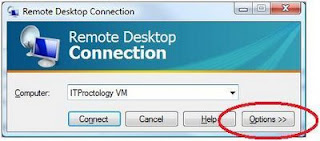
1. Open the Remote Desktop Client (this must be version 6.1 or higher).
2. Select the Options button (the one with the arrows showing you that there is More to it).
 3. Select the Local Resources TAB
4. Select More
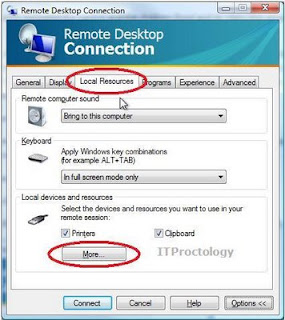
5. Now, choose those devices that you want to remote into your VM.
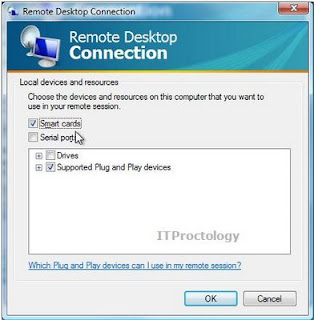
In my case I have Smart Cards and PnP devices selected.
But I could also choose drives, serial ports, etc. Expand the trees, look around.
Now, this will only work with the Remote Desktop Client, not the Remote Desktops Client (did you notice the ‘s’ ?).
And - this is very important - you must successfully log in to the remote VM after adding these settings, or else the settings changes are lost.
Okay, back to the previous thought..
Remote Desktops is for management, Remote Desktop is for remoting the user experience, they are different animals.
So, for all you testers, developers, people with Hyper-V on your laptops, etc. Here you go. You can have your Hyper-V and your weird devices too.
Oh, another caveat - if you RDP into a Windows Server 2008 box (machine or VM) using RDP and you want to take all your neat-o cool devices in with you - you need to enable the Desktop Experience feature on the Server 2008 box (machine or VM). This is what installs all the support for all the neat-o cool things that we all enjoy on our desktops.


16 comments:
How can i get my USB devices to a guest OS which doesn't use RDP? (I.e SUSE Linux Enterprise Server 11).
I can remote in via PuTTY and Xming, but no usb over that method.
None the less, thanks for an informative post. I'll remember this one.
Tim
Outside of 3rd party tools that remote USB over IP I am afraid that I don't know of any solution.
Currently, this is the best way (USB over IP) to deal with things like licensing HASPs.
It works because the VM can travle to any hypervisor within the infrastructure as it needs to. So it can run on any cluster member or be moved to an entirely different cluster.
Many thanks. Worked like a charm. Appreciate your detailed help.
Worked great, Thanks a lot.
As far as I can tell this would not apply for Windows Mobile devices where typically the device connects via Windows Mobile Device Center (and presumably ActiveSync) and is communicated with over the network transport it provides.
Actually, that support is dependent upon the version of RDP services in the VM and the version of RDP client you are running on the connecting client.
Support for ActiveSync over RDP was added back around Windows7 / Server 2008 (possible the last SP to Vista).
It was a while back, as I recall it being one of my first protocol projects around that timeframe.
This is a lame solution at best. It requires you to use RDP for one thing, which means if you don't have an RDP session the USB device is disconnected. The best solution is to get VMWare.
I would not call it a better solution, just a different one.
It depends on what you are trying to do.
Personally, use VirtualBox if you have a need to use a USB device like a software HASP (as archaic as those are).
Otherwise, with the Enhanced Session Mode in Server 2012 R2 - you get an RDP session by default (instead of the basic VM console), with all the device remoting.
It all depends on your use case.
I'm running Windows 8 with XP Pro installed..When I got to my
compute and try to open A: I get the following message "Please insert a disk into Drive A:
(I am using a usb floppy Drive) How do I get XP to use the floppy drive?
That is a hard coded path to a particular IDE device.
You can create a virtual floppy disk and attach that to your VM.
That is the only way the OS will think it has a device on A: or B:
WinImage can be used to create VFD disks.
Thanks Brian for your clear instructions - much easier to follow than Microsoft's. You've saved me a lot of time trying to figure out the solution.
BTW I had to password the user account in my Windows 7 VM before I could remote into it from Windows 8.
That doens't work. I have a hyper V on windows 2008 R2 SP1. I try to sharing my smartcard local with the windows 7(hyper V)through TS and it doesn't apper on management. DO you know WHy?
As long as the version of RDP is up to date on both the client and server end, and you are not using Enhanced Session mode RDP should simply handle this.
Smart Cards are an option in the RDP connection setup on the client side. Just like USB devices.
That said, your Smart Card reader must have a driver that is properly supported with RDP redirection.
Back in the Server 2008 days that means that the driver needed to have some special driver extensions for RDP to hook or else RDP would not redirect the device.
I would first ask if you have the latest service packs since you are running older OSes on each end.
Here is something really old directly related to Smart Cards and Windows 7.
It might provide some insight.
http://blogs.msdn.com/b/virtual_pc_guy/archive/2010/02/15/connecting-a-smart-card-to-a-windows-7-virtual-machine.aspx
How about android mobile devices? I tried to plug in a Motorola phone and nexus 9 tablet one at a time, but my hyper-v client doesn't see them. Both my host and client are windows 10. Thanks.
How are you connecting to the VM console?
If you are using Enhanced Session Mode you will inherit any RDP settings you have saved.
I would try this - connect directly to the VM using RDP to the IP of the VM, be sure that all the extra options are enabled as noted above.
This takes Enhanced Session Mode out of the mix, which you would default to using Hyper-V Client and would use straight RDP.
My reason for saying this: Enhanced Session Mode is still a proxy for RDP, where connecting straight to the VM using the RDP client is not.
If it does not work using the straight RDP client, then it is an RDP USB redirection issue. Which can be a caused by the Android driver or it can be something else.
But at least a first step in isolation of the issue.
Post a Comment